Increase CommerceSnowTech on Amazon

Add my seller account as a SnowTech Brand Representative

This takes about three minutes in Brand Registry. Once you connect my account, I can send SnowTech boxes into Amazon's warehouses and sell them on your existing listings.

You sign in withYour Brand Registry login
My Merchant Token (Live Your Best Life)A2Y8GHGVEIGVCS
1

Open Manage selling roles

Click Open Manage selling roles and sign in with your Brand Registry login. If you are already on Brand Registry, open Manage in the dark bar at the top and choose Manage selling roles.
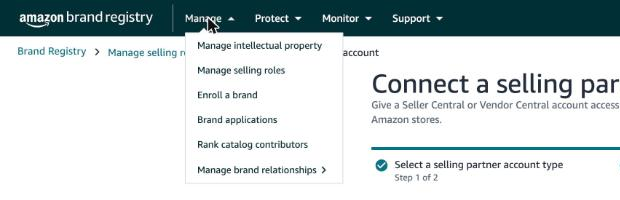
Brand Registry Manage menu open, with Manage selling roles second in the list
2

Click Connect a selling partner account

The button sits on the right side of the page, across from the page title. Or skip ahead with Connect a selling partner account.

Manage selling roles page with the Connect a selling partner account button on the right
Julio, Increase CommercePage 1 of 3
Increase CommerceSnowTech on Amazon
3

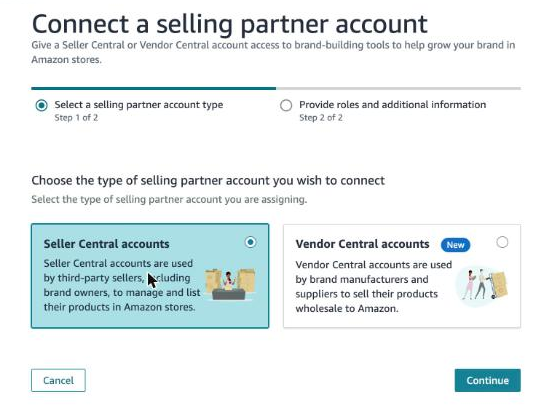
Choose Seller Central accounts

On the first screen of the form, pick Seller Central accounts, then click Continue at the bottom right. If this screen is not open, open the form here.

Step 1 of 2: Seller Central accounts selected, Continue button at the bottom right
4

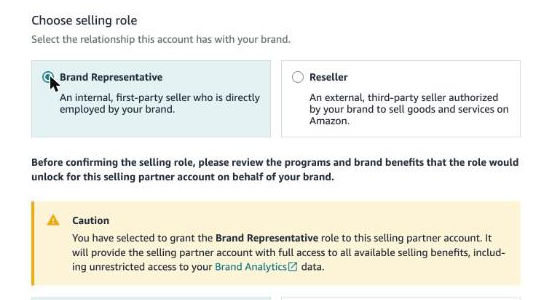
Choose Brand Representative

Pick Brand Representative, the box on the left. Amazon then shows a yellow caution box: it says this role lets my account see SnowTech's Brand Analytics, the search data that shows the words shoppers type to find the packs. That is the data I use to set up the listings and ads.

Choose selling role: Brand Representative selected on the left, Reseller on the right, a caution box below
Julio, Increase CommercePage 2 of 3
Increase CommerceSnowTech on Amazon
5

Fill in four fields and tick the box

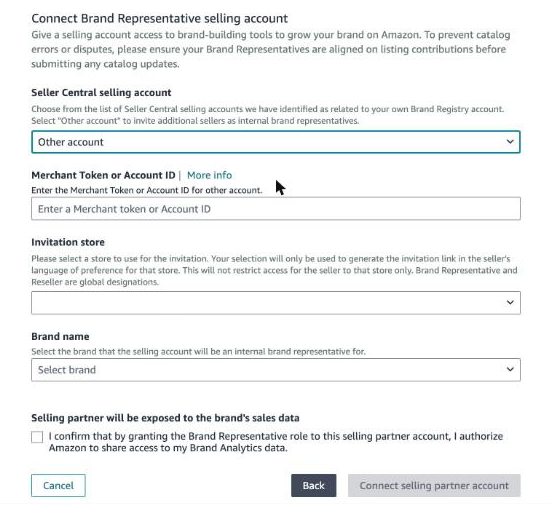
Lower on the same screen, fill the form like this.

Connect Brand Representative selling account form with Other account, Merchant Token, Invitation store, Brand name and the Brand Analytics checkbox
Seller Central selling account
Other account
Merchant Token or Account ID
A2Y8GHGVEIGVCS
Invitation store
United States
Brand name
SnowTech
The checkbox
Tick it, so my account can see the Brand Analytics data
6

Click Connect selling partner account

The button at the bottom right turns on once the fields are filled. That is the last click on your side.

What happens next

Amazon sends me an invitation and I accept it. The connection then shows on your Manage selling roles page, and I start the steps to send the first boxes in. If anything on these screens looks different, reply to my email and I will walk you through it.

Julio, Increase CommercePage 3 of 3